
If you have ever printed several copies of a document, you may have noticed the “Collate” option in your printer settings. Many people see this feature but do not fully understand what it does.
In simple words, collate means printing pages in the correct order so each copy of your document comes out complete and ready to use. This feature is very useful when printing reports, presentations, books, manuals, or any multi-page document. Instead of sorting pages by hand, the printer arranges everything for you automatically.
Understanding how collated printing works can save time, reduce mistakes, and make your printing tasks much easier.
What Does Collate Mean When Printing?
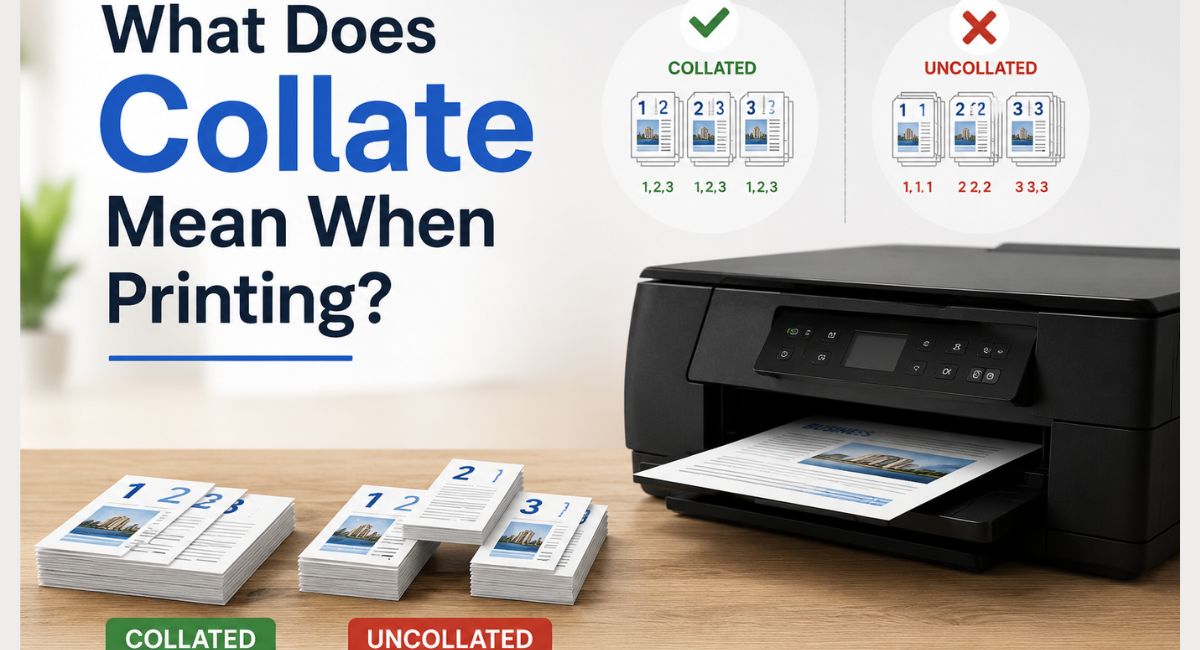
Collating means printing multi-page documents in sequential page order, one complete set at a time.
Here is the simplest way to think about it:
Say you’re printing 3 copies of a 4-page document. When the collate option is enabled, the printer prints each document in the correct page order.
Copy 1: Page 1 → Page 2 → Page 3 → Page 4 Copy 2: Page 1 → Page 2 → Page 3 → Page 4 Copy 3: Page 1 → Page 2 → Page 3 → Page 4
Each complete set comes out together, in the right reading order. You can pick them up off the tray and hand them directly to three different people — no sorting needed.
Without collating (uncollated), the printer groups pages by number instead:
All Page 1s × 3 → All Page 2s × 3 → All Page 3s × 3 → All Page 4s × 3
You’d end up with four stacks of identical pages, and you’d have to manually assemble three complete sets yourself. For a 4-page document, that’s tedious. For a 50-page manual? That’s a nightmare.
IDT Meaning in Text: Complete Guide, Examples & Usage (2026)
Collated vs. Uncollated Printing: What’s the Real Difference?
Understanding the difference between collated and uncollated printing comes down to one question: do you want your printer to organize the pages, or will you handle that yourself?
Collated Printing
With collated printing, the printer completes one full copy of the document in proper page order before printing the next copy. The result is a neat stack of complete, ready-to-distribute document sets.
This is the default behavior in most modern printer software, and for good reason. Most people printing multiple copies of something want those copies already organized when they come out of the machine.
Use collated printing for:
- Business reports going to multiple colleagues
- Meeting presentations for everyone at the table
- Training manuals for a new hire orientation
- Student handouts for a classroom
- Invoices being mailed to different clients
- Booklets, brochures, or catalogs
Uncollated Printing
Uncollated printing outputs all copies of each page before moving to the next page. You get grouped stacks rather than complete sequential sets.
This approach actually makes sense in certain situations. If you’re printing a single-page flyer 100 times, collation is irrelevant. Or if you’re assembling packets where each page has a different version (like a personalized cover sheet), grouping pages by type first might be more efficient.
Use uncollated printing for:
- Single-page documents printed in bulk
- Situations where you’re inserting different content per copy
- Print jobs where a finishing machine will handle the assembly
- High-volume commercial print production workflows
Where to Find the Collate Option in Your Print Settings
The collate feature lives in different places depending on your printer and operating system, but it’s almost always accessible from the main print dialog box.
On Windows
When you press Ctrl+P (or go to File > Print), the print dialog opens. Look for a section labeled Copies or Number of Copies the collate checkbox is usually right next to it. On some systems, you’ll find it under Printer Properties or Advanced Settings.
On Mac
In the macOS print dialog, the collate option typically appears alongside the copies field. If you don’t see it immediately, click Show Details to expand the full print settings panel.
In Microsoft Word or Google Docs
Both applications show the collate checkbox directly in their built-in print dialogs. Word puts it right under the copied input field. Google Docs shows the collate option in the print settings window before the document is sent to the printer.
On the Printer Control Panel
Many multifunction printers have a built-in control panel with a copy function. When making copies directly on the machine (rather than printing from a computer), look for a Collate or Sort button in the copy settings menu.
Green Aura Meaning: What Your Energy Color Reveals About You
How Does Automatic Collation Work?
Modern printers handle collation automatically using one of two methods, depending on the printer’s capabilities and memory.
Memory-Based Collation
Higher-end printers have enough internal memory (or access to the print spooler on your computer) to store the entire document digitally. The printer processes all the page data first, then prints complete sets by cycling through the stored data for each copy. This is fast, clean, and produces no extra wear on the printer.
Re-Feed Collation
Some older or lower-cost printers physically re-feed paper through the machine for each copy. The printer processes page 1, prints it for every copy, then processes page 2, and so on. While the output is still organized into collated sets (if the feature is enabled), this method is slower and can increase wear on the paper handling components.
Either way, from your perspective, the result looks the same: complete, organized document sets ready to use.
Manual Collation: When You Have to Do It Yourself
Automatic collation is great, but sometimes it’s not available or doesn’t work quite right. That’s when manual collation comes in.
Manual collation simply means sorting pages by hand after printing. If your printer doesn’t support the collate feature, or if a print job comes out scrambled, you’d lay the pages out in sequence and assemble the sets yourself.
For short documents, this is no big deal. For anything longer than 10 to 15 pages with more than a few copies, it gets tedious fast. This is where office equipment like collating machines and finishing stations come in handy for high-volume printing environments.
In commercial print production, manual collation is sometimes intentional. A print finishing team may receive uncollated stacks from a high-speed press and use an automated collating machine to assemble them into organized document sets at scale.
Real-World Collate Printing Examples
Sometimes an abstract concept clicks the moment you see it in context. Here are a few common scenarios where the collate setting makes a real, practical difference.
Printing a Business Report
You’re printing a 15-page quarterly report for 8 team members. With collation enabled, the printer produces 8 complete, sequential report sets each one goes from page 1 straight through to page 15. You grab them off the tray and hand one to each person. Done.
Without collation, you’d get all 8 copies of page 1, then all 8 copies of page 2, and so on. Reassembling those into 8 complete reports by hand would take several minutes and introduces the risk of page-ordering mistakes.
Printing Classroom Handouts
A teacher printing a 6-page worksheet packet for 30 students benefits enormously from the collate option. The printer handles all the organization automatically; the teacher just staples each set and distributes them.
Printing a Booklet or Manual
For a training manual or product guide, collation is non-negotiable. The pages need to be in logical reading order, and each manual needs to be a complete, self-contained document. Uncollated output would require someone to manually sort through potentially hundreds of individual pages.
Printing Invoices
A billing department printing invoices for different clients wants each client’s invoice to come out as a complete document set. Collation ensures the right pages stay together and in order for each billing statement.
Should You Always Use Collated Printing?
Not necessarily. While collated printing is the right choice for most multi-page, multi-copy jobs, there are situations where uncollated output is preferable or just more logical.
Use collated printing when:
- You need multiple complete copies of a multi-page document
- The document will be distributed to different people
- You want to avoid manual page sorting
- You’re printing reports, presentations, manuals, or handouts
Skip collation (use uncollated) when:
- You’re printing a single-page document multiple times
- A binding machine or collating device will handle assembly
- You need to insert different cover sheets or inserts per copy
- You’re doing commercial print production where separate page stacks are more efficient
Collate and Double-Sided Printing
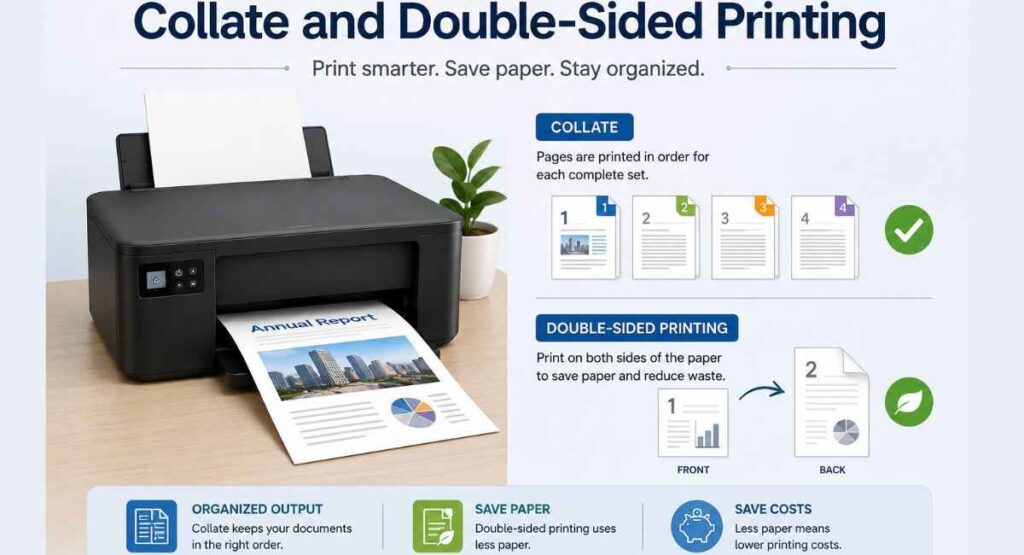
When you combine collation with duplex (double-sided) printing, your printer has a bit more to coordinate. In this setup, the printer needs to handle both the front and back of each physical sheet while still maintaining the correct sequential order across multiple copies.
Most modern printers manage this well automatically. The collate function works in conjunction with the duplex setting so that each double-sided copy comes out as a complete, correctly ordered document. Just make sure both settings are enabled in your print dialog before sending the job.
One thing to watch: if your printer requires you to manually flip pages for double-sided printing, pay close attention to the instructions. Getting the flip direction wrong can result in upside-down pages, which collation alone can’t fix.
Collation in Commercial and Professional Printing
In professional printing environments, collation takes on a more structured, large-scale meaning. Commercial print shops and managed print services use dedicated collating machines and finishing equipment that can handle thousands of pages at once.
These machines sort and assemble document packets automatically, often feeding directly from high-speed printing presses. For large runs of brochures, catalogs, training manuals, or marketing materials, automated collation equipment is essential for maintaining speed and accuracy.
Online collation refers to collating that happens during the printing process itself, where pages are sorted as they come off the press. Offline collation happens afterward, where printed sheets are gathered and sorted by separate finishing equipment.
For most office and business printing, none of this complexity applies; your printer handles it invisibly. But if you ever work with a commercial print vendor on a large document project, understanding these concepts helps you communicate your requirements clearly.
Common Collation Problems and How to Fix Them
Even with automatic collation, things occasionally go wrong. Here’s how to troubleshoot the most common issues.
Pages Come Out in the Wrong Order
First, double-check that the collate checkbox is actually checked in your print dialog. It’s easy to accidentally uncheck it. If it’s already enabled, the issue might be with how the PDF or document is formatted. Some document files have non-standard page numbering that confuses the printer driver.
Printer Ignores the Collate Setting
Some older printers or basic printer drivers don’t support automatic collation. If the feature doesn’t seem to do anything, check your printer’s manual or specifications. You may need to update the printer driver or handle sorting manually.
Print Job is Slow When Collating
Collating large documents with lots of graphics or high-resolution images can slow the printer down significantly, especially if the machine has limited internal memory. If this is a recurring issue, try reducing image resolution in the print settings or breaking the job into smaller batches.
Paper Jams During Collated Print Jobs
Paper jams are more likely in long, continuous print jobs. Make sure your paper tray is loaded properly, you’re using the correct paper weight for your printer, and the paper path is clear. Toner or dust buildup can also contribute to jams on longer runs.
Frequently Asked Questions
What does collate mean when printing?
Collating means printing multiple copies of a multi-page document so that each copy comes out as a complete set in sequential page order. Instead of printing all copies of page 1 together, then all copies of page 2, the printer completes the full document for copy 1, then the full document for copy 2, and so on.
What is the difference between collated and uncollated printing?
Collated printing produces complete document sets in order (Copy 1: pages 1-10, Copy 2: pages 1-10, etc.), while uncollated printing groups all copies of each page together (all page 1s, then all page 2s, etc.). Collation is better when you’re distributing copies to different people. Uncollated can be useful for single-page documents or when you’ll assemble packets differently.
Should I use collate when printing?
For most everyday printing reports, handouts, presentations, manuals yes, leaving collate enabled is the right call. It saves you from manually sorting pages and reduces the chance of assembling sets out of order. The only time to turn it off is for single-page documents or specialized production workflows.
Does collating slow down printing?
It can, depending on your printer. Some printers with limited memory need to re-process the document for each collated copy, which slows things down. High-end office printers with larger memory buffers handle collation at full speed. If you notice significant slowdowns, it’s usually related to the document’s file size and your printer’s processing power.
What does uncollated printing mean?
Uncollated printing outputs all copies of each individual page before moving to the next page. So if you’re printing 3 copies of a 5-page document uncollated, you get 3 copies of page 1, then 3 copies of page 2, and so on. You end up with separate stacks per page that you’d need to sort and assemble yourself.
Can all printers collate automatically?
Most modern printers including standard office multifunction printers support automatic collation. Some older or very basic printer models may lack this capability. If you’re unsure, check your printer’s specifications or look for the collate option in its settings menu. If the option doesn’t appear, your printer likely doesn’t support it natively.
Final Thoughts
The collate option in your print dialog is one of those small settings that has an outsized impact on your day-to-day printing workflow. At its core, it’s simple: collated printing gives you complete, organized document sets ready to hand out, while uncollated printing groups pages by number and leaves the sorting to you.
For most people in most printing situations, keeping collation enabled is the smart move. It saves time, prevents errors, and makes distributed printing feel nearly effortless. Now that you know exactly what it does and when to adjust it you can step up to the printer with a lot more confidence and a lot less guesswork.